---
title: Intro
description: Get started with opencode.
---
import { Tabs, TabItem } from "@astrojs/starlight/components"
import config from "../../../../config.mjs"
export const console = config.console
[**OpenCode**](/)는 터미널 기반 인터페이스, 데스크톱 앱, IDE 확장 형태로 사용할 수 있는 오픈 소스 AI 코딩 에이전트입니다.
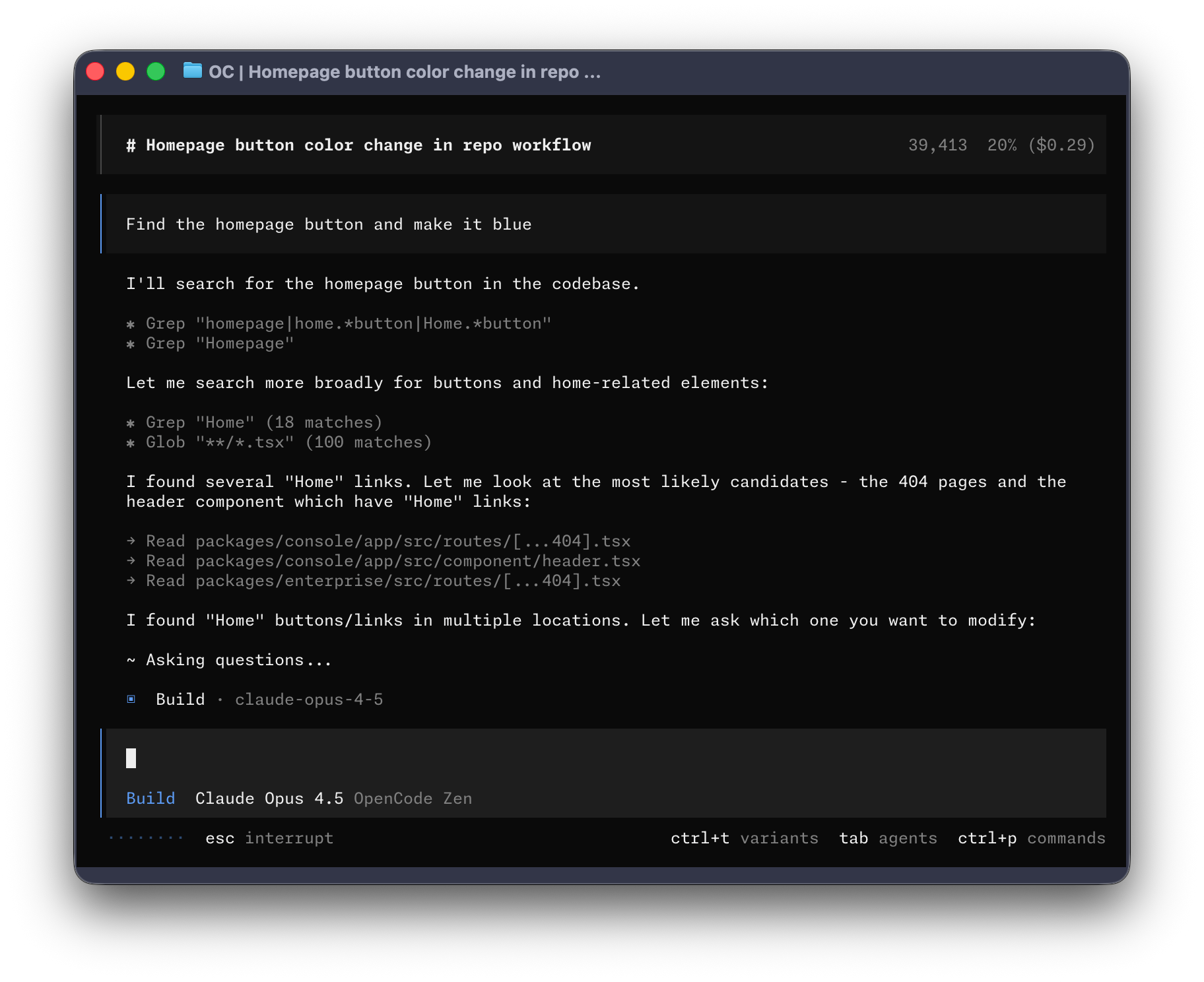
바로 시작해 봅시다.
---
#### 사전 준비
터미널에서 OpenCode를 사용하려면 다음이 필요합니다.
1. 최신 터미널 에뮬레이터(예:)
- [WezTerm](https://wezterm.org), 크로스 플랫폼
- [Alacritty](https://alacritty.org), 크로스 플랫폼
- [Ghostty](https://ghostty.org), Linux 및 macOS
- [Kitty](https://sw.kovidgoyal.net/kitty/), Linux 및 macOS
2. 사용할 LLM 제공자의 API 키
---
## 설치
가장 쉬운 설치 방법은 설치 스크립트를 사용하는 것입니다.
```bash
curl -fsSL https://opencode.ai/install | bash
```
아래 명령으로도 설치할 수 있습니다.
- **Node.js 사용**
```bash
npm install -g opencode-ai
```
```bash
bun install -g opencode-ai
```
```bash
pnpm install -g opencode-ai
```
```bash
yarn global add opencode-ai
```
- **macOS/Linux에서 Homebrew 사용**
```bash
brew install anomalyco/tap/opencode
```
> 최신 릴리스는 OpenCode tap 사용을 권장합니다. 공식 `brew install opencode` 포뮬러는 Homebrew 팀이 관리하므로 업데이트 주기가 더 긴 편입니다.
- **Arch Linux에서 Paru 사용**
```bash
paru -S opencode-bin
```
#### Windows
:::tip[권장: WSL 사용]
Windows에서는 [Windows Subsystem for Linux (WSL)](/docs/windows-wsl)을 사용하는 것이 가장 좋습니다. OpenCode 기능과의 호환성이 높고 성능도 더 좋습니다.
:::
- **Chocolatey 사용**
```bash
choco install opencode
```
- **Scoop 사용**
```bash
scoop install opencode
```
- **NPM 사용**
```bash
npm install -g opencode-ai
```
- **Mise 사용**
```bash
mise use -g github:anomalyco/opencode
```
- **Docker 사용**
```bash
docker run -it --rm ghcr.io/anomalyco/opencode
```
Windows에서 Bun을 통한 OpenCode 설치는 아직 지원되지 않으며, 현재 지원을 준비 중입니다.
[Releases](https://github.com/anomalyco/opencode/releases)에서 바이너리를 직접 받아 설치할 수도 있습니다.
---
## 구성
OpenCode는 API 키를 설정하면 원하는 LLM 제공자를 사용할 수 있습니다.
LLM 제공자(LLM Provider)를 처음 사용한다면 [OpenCode Zen](/docs/zen)을 추천합니다.
OpenCode 팀이 테스트하고 검증한 모델 목록입니다.
1. TUI에서 `/connect` 명령을 실행한 뒤 `opencode`를 선택하고 [opencode.ai/auth](https://opencode.ai/auth)로 이동합니다.
```txt
/connect
```
2. 로그인 후 결제 정보를 입력하고 API 키를 복사합니다.
3. API 키를 붙여 넣습니다.
```txt
┌ API key
│
│
└ enter
```
다른 제공자를 선택해도 됩니다. [더 알아보기](/docs/providers#directory).
---
## 초기화
이제 제공자 구성이 끝났으니, 작업할 프로젝트 디렉터리로 이동합니다.
```bash
cd /path/to/project
```
그리고 OpenCode를 실행합니다.
```bash
opencode
```
다음 명령으로 프로젝트용 OpenCode 초기화를 진행합니다.
```bash frame="none"
/init
```
이 명령은 프로젝트를 분석하고 루트에 `AGENTS.md` 파일을 생성합니다.
:::tip
프로젝트의 `AGENTS.md`는 Git에 커밋해 두는 것을 권장합니다.
:::
그러면 OpenCode가 프로젝트 구조와 코딩 패턴을 더 잘 이해할 수 있습니다.
---
## 사용법
이제 OpenCode로 프로젝트 작업을 시작할 준비가 되었습니다. 무엇이든 물어보세요.
AI 코딩 에이전트를 처음 쓰는 경우 도움이 되는 예시를 소개합니다.
---
### 질문하기
OpenCode에 코드베이스 설명을 요청할 수 있습니다.
:::tip
프로젝트 파일은 `@` 키로 퍼지 검색할 수 있습니다.
:::
```txt frame="none" "@packages/functions/src/api/index.ts"
How is authentication handled in @packages/functions/src/api/index.ts
```
직접 작업하지 않은 코드 영역을 이해할 때 특히 유용합니다.
---
### 기능 추가
프로젝트에 새 기능을 추가해 달라고 요청할 수 있습니다. 다만 먼저 계획을 만들게 하는 것을 권장합니다.
1. **계획 만들기**
OpenCode에는 변경 작업을 비활성화하고 구현 방법을 제안만 하는 *Plan mode*가 있습니다.
**Tab** 키로 전환하면 오른쪽 아래에 모드 표시가 나타납니다.
```bash frame="none" title="Switch to Plan mode"
```
이제 원하는 작업을 구체적으로 설명합니다.
```txt frame="none"
When a user deletes a note, we'd like to flag it as deleted in the database.
Then create a screen that shows all the recently deleted notes.
From this screen, the user can undelete a note or permanently delete it.
```
OpenCode가 정확히 이해할 만큼 충분한 맥락을 주는 것이 중요합니다. 팀의 주니어 개발자에게 설명하듯 요청하면 도움이 됩니다.
:::tip
맥락과 예시를 충분히 제공하면 원하는 결과를 얻기 쉽습니다.
:::
2. **계획 다듬기**
계획이 나오면 피드백을 주거나 추가 요구사항을 붙일 수 있습니다.
```txt frame="none"
We'd like to design this new screen using a design I've used before.
[Image #1] Take a look at this image and use it as a reference.
```
:::tip
이미지를 터미널에 드래그 앤 드롭하면 프롬프트에 첨부할 수 있습니다.
:::
OpenCode는 첨부한 이미지를 분석해 프롬프트에 포함합니다.
3. **기능 구현**
계획이 충분히 만족스러우면 **Tab** 키를 다시 눌러 *Build mode*로 돌아갑니다.
```bash frame="none"
```
그리고 실제 변경을 요청합니다.
```bash frame="none"
Sounds good! Go ahead and make the changes.
```
---
### 바로 변경하기
비교적 단순한 변경은 계획 검토 없이 바로 구현하도록 요청해도 됩니다.
```txt frame="none" "@packages/functions/src/settings.ts" "@packages/functions/src/notes.ts"
We need to add authentication to the /settings route. Take a look at how this is
handled in the /notes route in @packages/functions/src/notes.ts and implement
the same logic in @packages/functions/src/settings.ts
```
원하는 변경이 정확히 반영되도록, 필요한 맥락을 충분히 제공하세요.
---
### 변경 되돌리기
예를 들어 OpenCode에 변경을 요청했다고 가정해 보겠습니다.
```txt frame="none" "@packages/functions/src/api/index.ts"
Can you refactor the function in @packages/functions/src/api/index.ts?
```
결과가 기대와 다르면 `/undo` 명령으로 **되돌릴 수** 있습니다.
```bash frame="none"
/undo
```
OpenCode는 방금 적용한 변경을 되돌리고 원래 메시지를 다시 보여줍니다.
```txt frame="none" "@packages/functions/src/api/index.ts"
Can you refactor the function in @packages/functions/src/api/index.ts?
```
이 상태에서 프롬프트를 다듬어 다시 시도하면 됩니다.
:::tip
`/undo`는 여러 번 연속으로 실행할 수 있습니다.
:::
반대로 `/redo` 명령으로 **다시 적용**할 수도 있습니다.
```bash frame="none"
/redo
```
---
## 공유
OpenCode와의 대화는 [팀과 공유](/docs/share)할 수 있습니다.
```bash frame="none"
/share
```
현재 대화 링크를 생성하고 클립보드에 복사합니다.
:::note
대화는 기본값으로 공유되지 않습니다.
:::
아래는 OpenCode [대화 예시](https://opencode.ai/s/4XP1fce5)입니다.
---
## 커스터마이즈
이제 OpenCode 사용의 기본은 끝났습니다.
자신의 워크플로우에 맞추려면 [테마 선택](/docs/themes), [키바인드 커스터마이즈](/docs/keybinds), [코드 포매터 설정](/docs/formatters), [커스텀 명령 작성](/docs/commands), [OpenCode config 조정](/docs/config)을 추천합니다.